

Goals
- Locally configure and run a dockerized Traefik reverse proxy over TLS
- Deploy the setup on a real domain name
Quick overview
Traefik is a modern HTTP reverse proxy and load balancer that makes deploying microservices a breeze. It’s designed to integrate seamlessly with your existing infrastructure components, and it’s particularly powerful when combined with Docker.
At its core, Traefik works by dynamically discovering your services and routing requests to them. Instead of manually configuring each service endpoint, Traefik monitors your Docker daemon (or other orchestrators like Kubernetes, Swarm, Mesos, etc.) for changes. When a new container is launched or an existing one is stopped, Traefik automatically updates its routing rules. You can check their official documentation here: https://doc.traefik.io/traefik/
 Overview of Traefik/Docker relationship
Source code
Here you’ll find the full source code for a ready to launch Treafik reverse proxy, with an automatic TLS certificates generation provider: https://github.com/a-naitslimane/anaitslimane.article.reverse-proxy-traefik-docker.git
Note:
There are many ways to run/deploy docker containers. Here, I will exclusively be using docker compose.
Local Setup
Prerequisites:
- Docker and Docker Compose installed on your machine
Setup
-
Clone the source code to your working-directory
-
Set environment variables
- Create a copy of .env.exemple named .env.
In it, you can set your own values of course, as long as they are consistent with the rest of the following config.
The DOMAIN_NAME value in particular
- Create a copy of .env.exemple named .env.
-
Bind your DOMAIN_NAME to the localhost:
-
Add these two lines to the
hostsfile:C:\Windows\System32\drivers\etc\hosts(on Windows) and/etc/hosts(on Linux).127.0.0.1 <local-domain-name> 127.0.0.1 <dashboard-prefix>.<local-domain-name> -
For example:
127.0.0.1 my-local-domain.com
127.0.0.1 my-dashboard-prefix.my-local-domain.com
-
-
Create the common (external) network which will be used by all services managed by Traefik:
- Open a terminal and type in:
docker network create my-external-network
- Open a terminal and type in:
-
Launch the services using docker compose:
- In your terminal, first cd to your working-directory then type:
docker compose -f docker-compose.yaml -f docker-compose.local.yaml up
- In your terminal, first cd to your working-directory then type:
Testing
-
Check that both the traefik-reverse-proxy and traefik-mkcert containers are running and healthy.
-
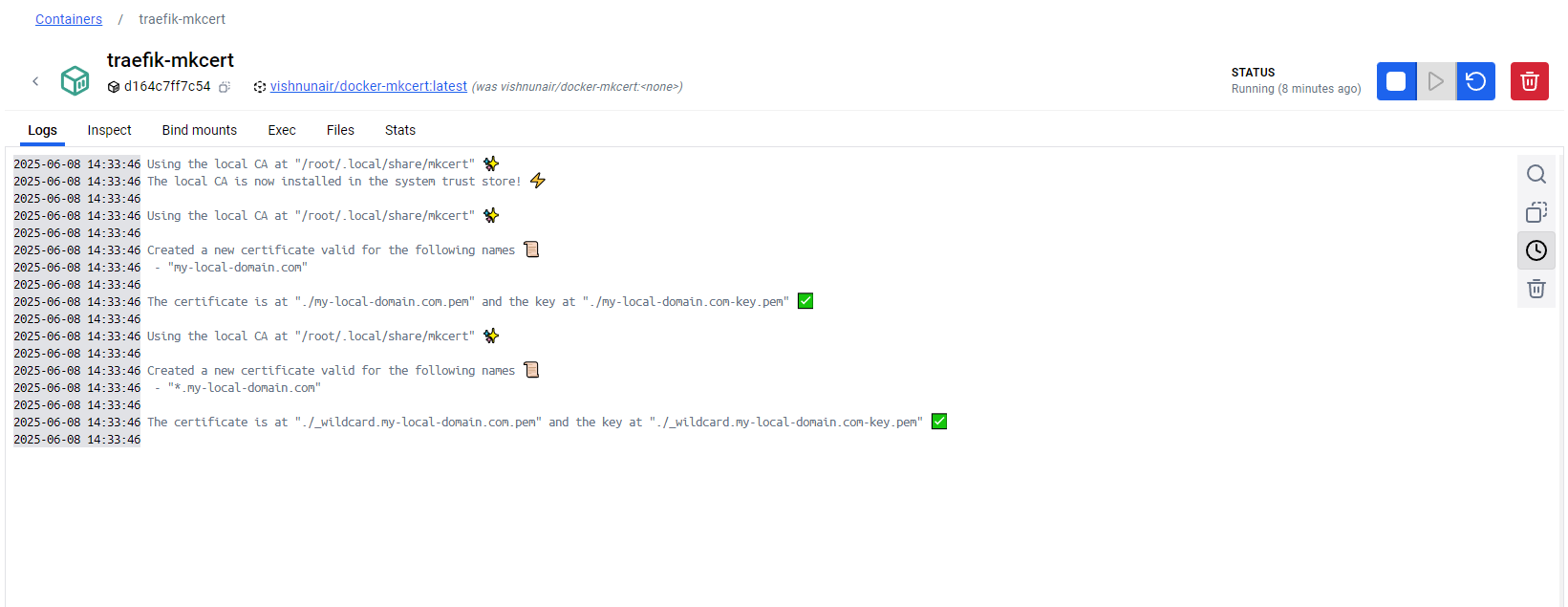
Check your certs directory, if eveything went fine, it should now be populated with local certificates. If you check in the logs (here I am using Docker Desktop) you should have this:
-
Open the following address in your browser: http://localhost:8080/dashboard/
You should be seeing the following dashboard: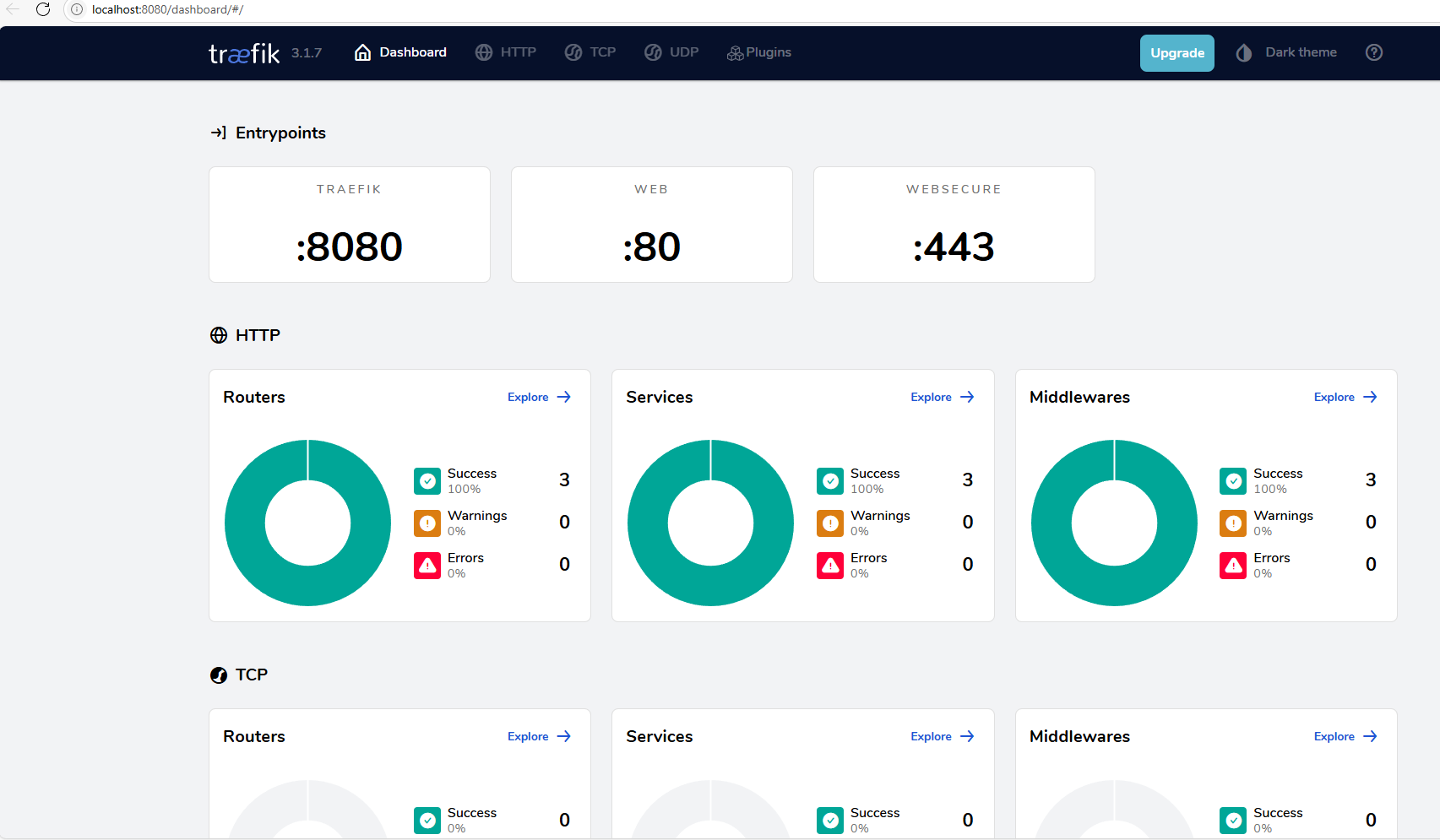
Deploy on a Real Domain
Prerequisites:
- SSH access to a deployment/hosting server
- A registered domain name
- Docker and Docker Compose installed on your deployment/hosting server
Setup
From now on, everything that follows (commands/instructions) will of course assume you are on a terminal connected to your remote server through SSH
-
Optional: Secure the dashboard access using a BasicAuth authentication (you need to have htpasswd installed)
- Generate the TRAEFIK_CREDENTIALS
echo $(htpasswd -nb <your-username> <your-pwd>) | sed -e s/\\$/\\$\\$/g - Remember/save the values you entered for the <your-username> and <your-pwd> as they wil be the values needed to access your dashboard respectively for the username and password.
- Generate the TRAEFIK_CREDENTIALS
-
Clone (or remote copy) the source code to your server’s working-directory of choice
-
Set environment variables:
- Create a copy of .env.exemple named .env and set the correct values within it:
- ENV=prod.
- Your own DOMAIN_NAME
- Your own DASHBOARD_PREFIX
- If applicable, the previously generated value for TRAEFIK_CREDENTIALS
- Create a copy of .env.exemple named .env and set the correct values within it:
-
Create the common (external) network which will be used by all services managed by Traefik:
- In your ssh terminal, type in:
docker network create my-external-network
- In your ssh terminal, type in:
-
Set your own contact email
## docker-compose.prod.yaml ##64 ############################################################################################## 65 # tlschallenge challenge 66 ############################################################################################## 67 # Email address used for registration. 68 # 69 # Required 70 # 71 #- "--certificatesresolvers.tlsResolver.acme.email=/secrets/cert_contact_email" 72 - "--certificatesresolvers.tlsResolver.acme.email=contact@my-domain.com"This email should be a real one, you cannot use a fake one even for the staging servers
-
Set the TLS certificate servers
In order to avoid exceeding the rate limit set on Let’s Encrypt production servers, it is advisable to first try out and make all your tests using the Let’s Encrypt staging servers:
## docker-compose.prod.yaml ##80 # CA server to use. 81 # Uncomment the line to use Let's Encrypt's staging server, 82 # leave commented to go to prod. 83 # 84 # Optional 85 # Default: "https://acme-v02.api.letsencrypt.org/directory" 86 # Staging: "https://acme-staging-v02.api.letsencrypt.org/directory" 87 # 88 - "--certificatesresolvers.tlsResolver.acme.caserver=https://acme-staging-v02.api.letsencrypt.org/directory" -
Prepare your Traefik dashboard access subdomain:
- Go to your domain provider DNS zone and add a CNAME entry which will be the Traefik dashboard
- For example, if your domain name is “my-domain-name.com” and the DASHBOARD_PREFIX is “my-traefik-dashboard”, you need to add “my-traefik-dashboard.my-domain-name.com” as a CNAME and point it to “my-domain-name.com”
-
Launch Traefik in production:
- In your terminal, first cd to your working-directory then type:
docker compose -f docker-compose.yaml -f docker-compose.prod.yaml up
- In your terminal, first cd to your working-directory then type:
Important!
Be aware that the staging server’s configuration will emit valid certificates, however not trusted by your browsers. When accessing your domain (and subdomains), you will have a warning NET::ERR_CERT_AUTHORITY_INVALID that you’d need to bypass in order to accept the certificates as trusted ones.
- Once everything is tested out and in full order using the staging servers, put back the production servers url (Default): “https://acme-v02.api.letsencrypt.org/directory"
Testing
- Check that the traefik-reverse-proxy container is running and healthy.
- Access your dashboard at: https://my-traefik-dashboard.my-domain-name.com/dashboard/
(of course replace with your own real subdomain address)
If you’ve set the BasicAuth, you’d of course need to provide your username/password set previously in order to be authenticated
- Check the acme.json file
- ssh to your server and access your reverse proxy container:
docker exec -it prod-traefik-reverse-proxy sh- Now, if you open the acme.json file, it should have the certificates for both your main domain and your subdomain (Traefik dashboard):
cat /letsencrypt/acme.json
Further dissection
-
Here we basically redirect all http (port 80) requests to https (port 443) :
## docker-compose.local.yaml ##11- "--entryPoints.web.address=:80" 12- "--entryPoints.web.http.redirections.entryPoint.to=websecure" 13- "--entryPoints.web.http.redirections.entryPoint.scheme=https" 14- "--entryPoints.websecure.address=:443"Specifically for the production config, we inforce https as default entrypoint, and the TLS certResolver :
## docker-compose.prod.yaml ##23 - "--entryPoints.web.address=:80" 24 - "--entryPoints.web.http.redirections.entryPoint.to=websecure" 25 - "--entryPoints.web.http.redirections.entryPoint.scheme=https" 26 - "--entryPoints.websecure.address=:443" 27 - "--entrypoints.websecure.asDefault=true" 28 - "--entrypoints.websecure.http.tls.certResolver=tlsResolver" -
Locally, the TLS certificates generation is handled by a third party tool mkcert, here:
## docker-compose.local.yaml ##38traefik-mkcert: 39 image: vishnunair/docker-mkcert 40 container_name: traefik-mkcert 41 42 environment: 43 - domain=${DOMAIN_NAME}, *.${DOMAIN_NAME} 44 volumes: 45 - ./certs/:/root/.local/share/mkcert 46 labels: 47 - "traefik.enable=false" 48 networks: 49 - my-external-networkYou can find the repo here: vishnunair/docker-mkcert
Also since both traefik-reverse-proxy and traefik-mkcert containers map a volume to the host’s “certs” directory, the traefik-reverse-proxy container can read the certificates generated by the traefik-mkcert container:
## docker-compose.local.yaml ##traefik-reverse-proxy: ... ... volumes: - ./certs/:/etc/certs:ro ... ... traefik-mkcert: ... ... volumes: - ./certs/:/root/.local/share/mkcert ... ... -
Locally, we are mapping an extra port 8080:
## docker-compose.local.yaml ##33 ports: 34 - "80:80" 35 - "443:443" 36 - "8080:8080"Its scope sits outside of the global entryPoints configuration, thus allowing us to locally access the dashboard directly through http:
## docker-compose.local.yaml ##5 command: 6 - "--api.dashboard=true" 7 - "--api.insecure=true" 8 9 - "--serversTransport.insecureSkipVerify=true" -
On the production side, the acme.json file might have permissions issues if we leave it on its own, that’s the reason why we enforce its permissions management at runtime:
## entrypoint.sh ##1#! /bin/sh 2set -e 3 4echo "Setting acme.json permissions 0600" 5touch /letsencrypt/acme.json 6chmod 600 /letsencrypt/acme.json 7chown root:root /letsencrypt 8chown root:root /letsencrypt/acme.json
Wrapping up
We have been able to quickly setup a ready to use Traefik reverse proxy with an automatic Let’s Encrypt certificates generation. Both locally and on a live server/domain.
The next step is to add a service (Docker container) configured in the same network as the presented reverse proxy and watch how auto-magically it is recognized and taken care of by Traefik.