

Goals
- Configure a fully functional dockerized Jenkins setup for both the Controller (Master) and an Agent (Slave)
- Route the config through our previously set Traefik reverse proxy
Introduction
Before proceeding to the core of our setup, let’s introduce a few key concepts.
Modern CI/CD pipelines face a common challenge: creating a consistent, clean, and reproducible build environment.
Traditional methods often lead to dependency conflicts and “works on my machine” issues.
Docker provides the perfect solution by packaging applications and their dependencies into isolated containers. When we combine Jenkins, the leading automation server, with Docker, we create a powerful and flexible CI/CD system.
This integration can be set up in two primary ways:
-
Jenkins inside a Docker container that also has a Docker daemon (Docker-in-Docker or DinD).
-
Jenkins inside a Docker container that uses the host’s Docker daemon (Docker-out-of-Docker or DoD).
The following is a quick comparison of Dind and DoD in regards to Jenkins:
| Feature | Docker-in-Docker (DinD) | Docker-out-of-Docker (DoD) |
|---|---|---|
| How It Works | Jenkins container runs its own, nested Docker daemon. | Jenkins container uses the host’s Docker daemon. |
| Security | ⚠️ Know what you’re doing! Requires the --privileged flag. |
✅ Strait forward. No privileged mode needed. |
| Performance | 🔻 Poor. Overhead from multiple daemons; no shared cache. | ✅ Excellent. Single daemon, and shared image cache. |
| Isolation | ✅ Full. Each build is isolated from the host and other jobs. | 🔻 Limited. All containers are “siblings” on the same host. |
Important!
This article will be covering exclusively the DoD approach. And, to keep everything simple, I will be using the same host for both the Controller and the Agent.
Source code
Here you’ll find the source code for a fully functional Jenkins install:
- Controller (master) : https://github.com/a-naitslimane/anaitslimane.article.jenkins-traefik-docker.jenkins-controller
- Agent (slave) : https://github.com/a-naitslimane/anaitslimane.article.jenkins-traefik-docker.jenkins-agent
Setup
Prerequisites:
- Docker and Docker Compose installed on your machine
- A Dockerized Traefik reverse proxy running locally. If not, please follow through my previous article Traefik reverse proxy
Important!
The following configs are strongly linked to my previous article’s configs. Please remember to adjust with your own values. Especially the external docker network’s name
Container setup
-
Clone the source code to a working-directory
-
Set environment variables
- Create a copy of .env.exemple named .env.
In it, you can set your own values of course, as long as they are consistent with the rest of the following config.
- Create a copy of .env.exemple named .env.
-
Bind your DOMAIN_NAME to the localhost:
-
Add your local domain name to the
hostsfile:C:\Windows\System32\drivers\etc\hosts(on Windows) and/etc/hosts(on Linux).127.0.0.1 ci-cd-ctrl.my-local-domain.com
-
-
Launch the service using docker compose:
- In your terminal, first cd to your working-directory then type:
docker compose up
- In your terminal, first cd to your working-directory then type:
Testing the Controller
-
Check that the controller’s container is running and healthy. Grab the password set by default.
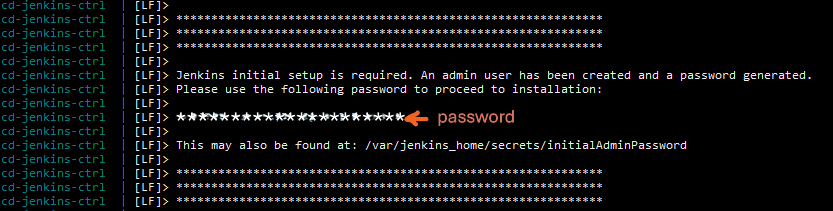
-
In your browser, open the address you’ve configured as DOMAIN_NAME (ex: ci-cd-ctrl.my-local-domain.com)
Enter the password you’ve picked in the previous instruction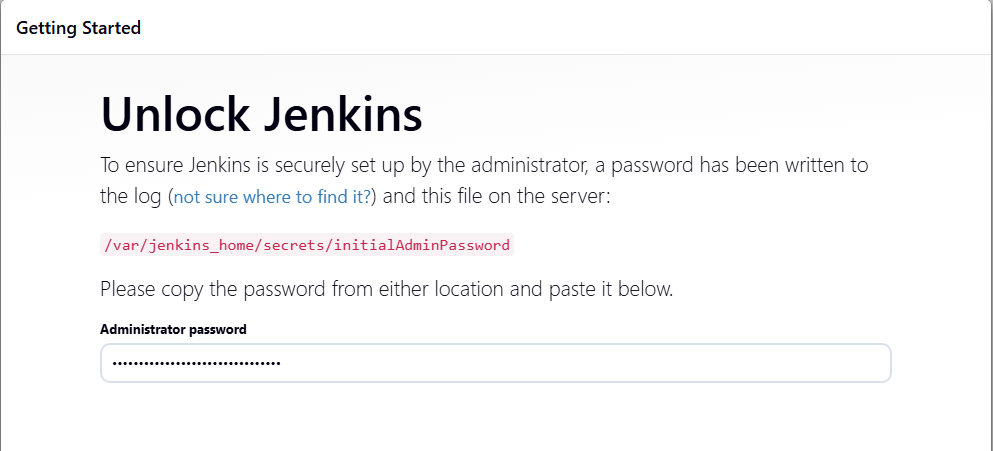
-
Click on your preferred way of plugin installation. Note that you can manage plugins later.
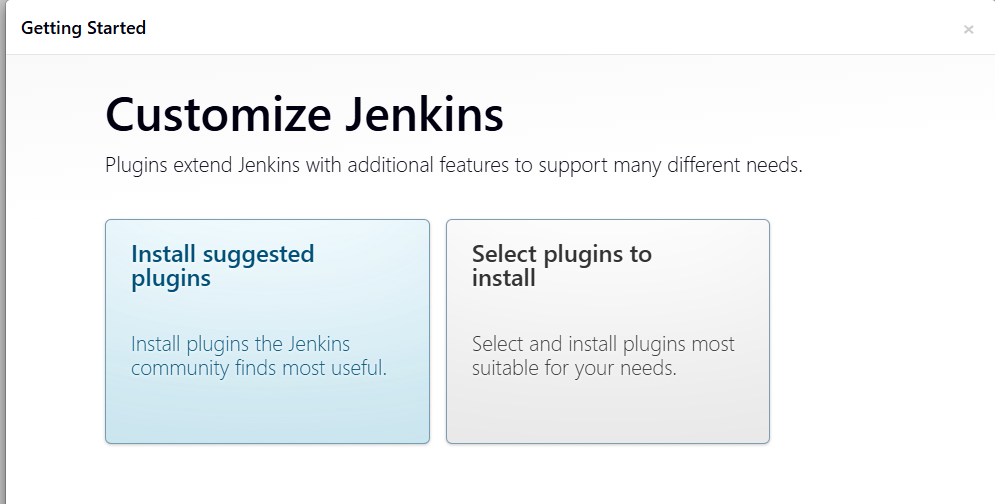
-
Fill-in your admin profile account
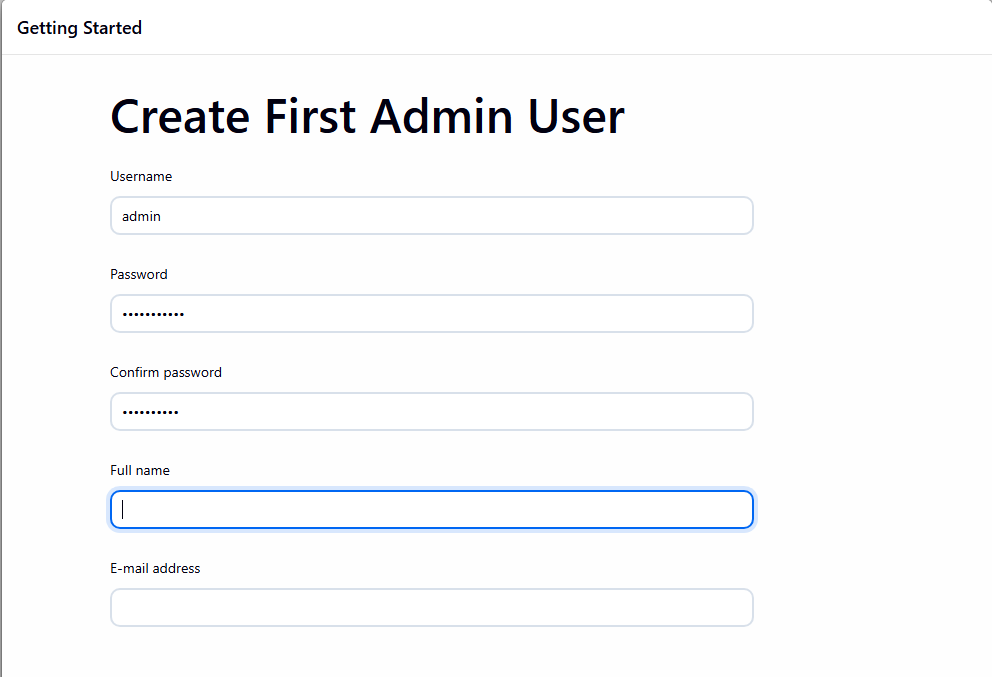
-
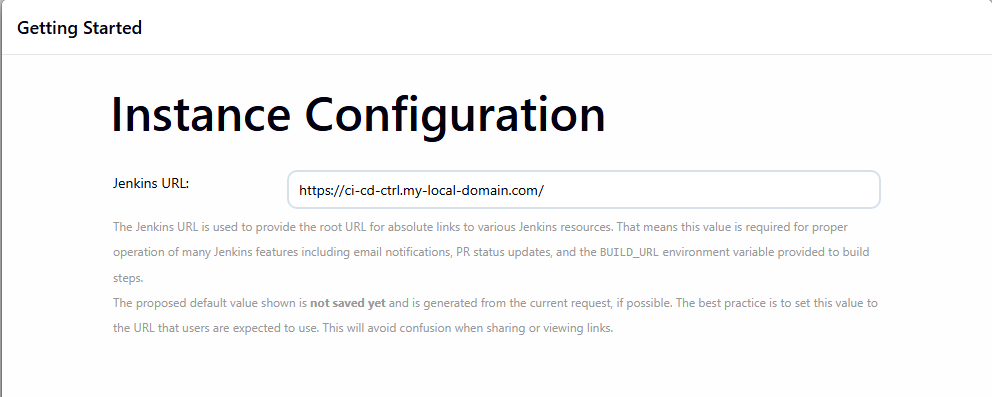
Set up the Jenkins URL with the value of your DOMAIN_NAME (ex: ci-cd-ctrl.my-local-domain.com)
What about the Agent (Node) ?
There are two methods to link the agent to controller provided in the Launch method. The first requires to connect the agent to the controller in which case the controller’s inbound port needs to be set and configured. Please refer in this case to the jenkins/ssh-agent docs
For this article, I specifically chose the second option! Which goes the other way around. Meaning that the controller has to connect to the agent, via SSH.
In order to achieve that, we . Then we need to create what is called in jenkins: credentials. Please refer to the jenkins docs to learn more about how to manage credentials
Here again, we’ll be given multiple options, and I chose a specific one which is “SSH Username with private key”. It requires the creation of a SSH key pair to use between the controller/agent.
Now that the full context is set, let’s go through the process:
Preparing the SSH configuration
-
connect into the controller container’s console (bash is available in the image):
docker exec -it ci-cd-jenkins-ctrl bash -
Generate the key (here I chose the ssh-ed25519 algorithm but it could be any) with the following command. Leave the passphrase blank in order to avoid unnecessary headache for now.
ssh-keygen -t ed25519 -C "jenkins"This will generate the SSH key pair (private/public) that we will use next in our credentials configuration. The default directory in which the keys (private/public) will be saved should be ’/var/jenkins_home/.ssh’
Adding the credentials
-
Go to the controller’s dashboard
-
Click on Manage Jenkins > Credentials
-
You can create a domain for which these credentials apply specifically
 Or, as I did for simplicity, just chose the default Global credentials (unrestricted)
 -
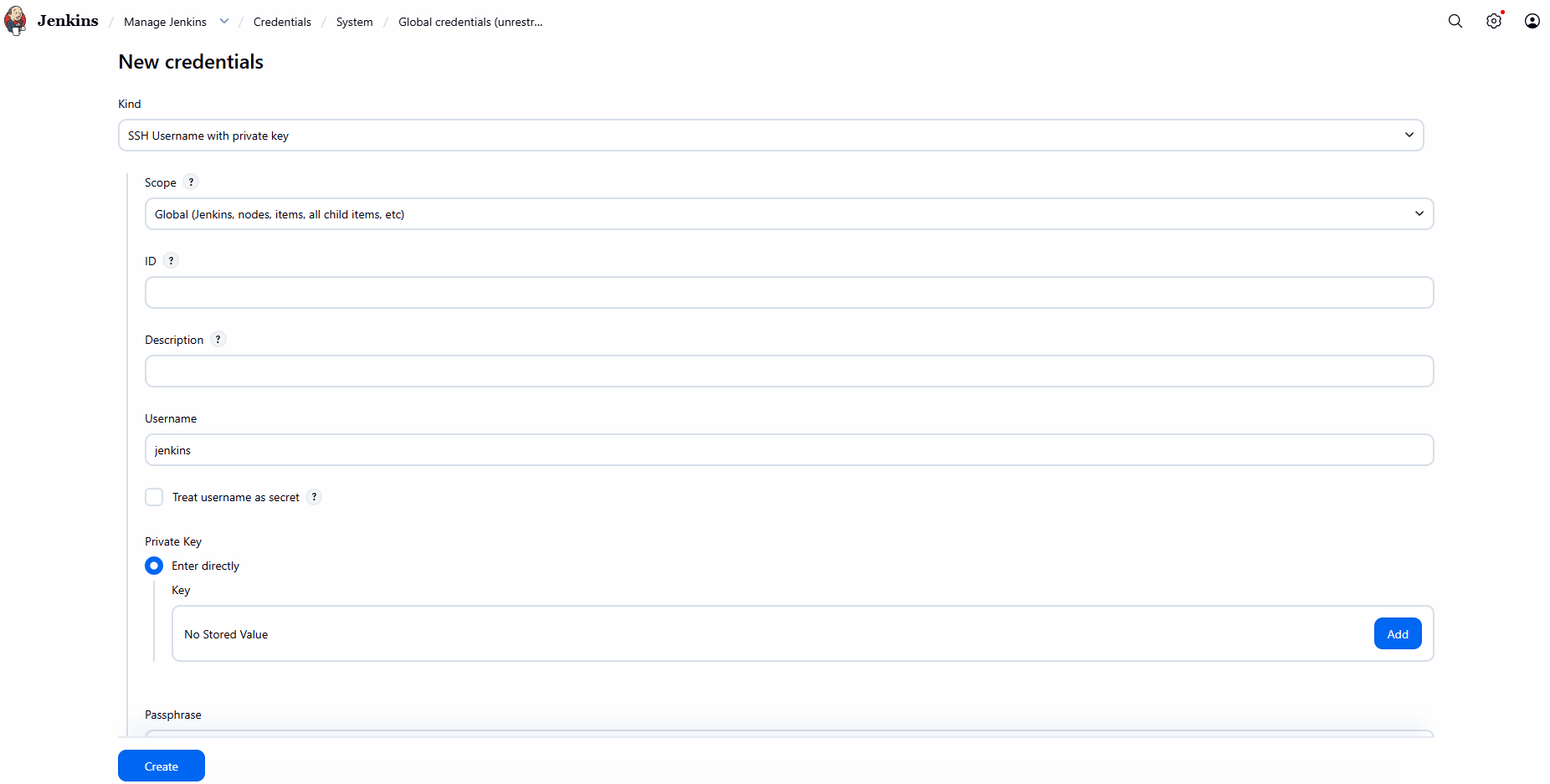
Click on adding some credentials
-
As stated in the context above, we choose the SSH Username with private key option
-
Enter jenkins in the Username field (the user associated with the SSH key)
-
In the Private Key, select Enter directly
-
Click Add, copy and paste the full private SSH key created previously for the user jenkins
Adding the Agent (Node)
-
Go to the controller’s dashboard
-
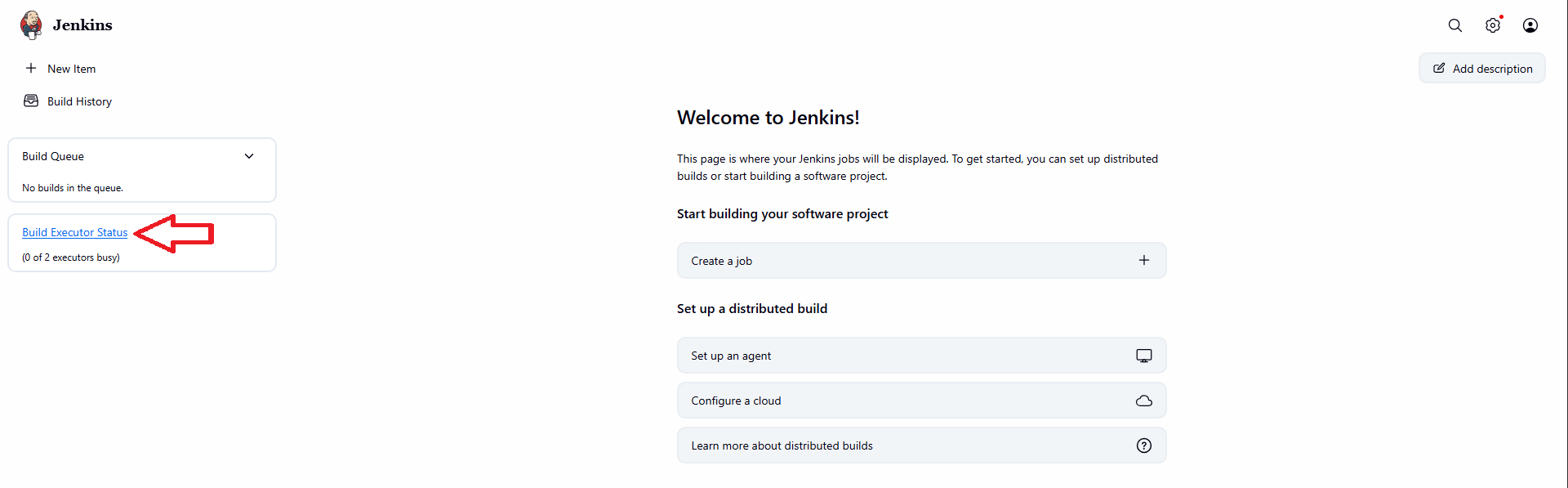
On the left menu, click on the Build executor Status link
-
Click on New Node to start adding our agent
 On the next screen, give it a name, select Permanent Agent, and click Create
 -
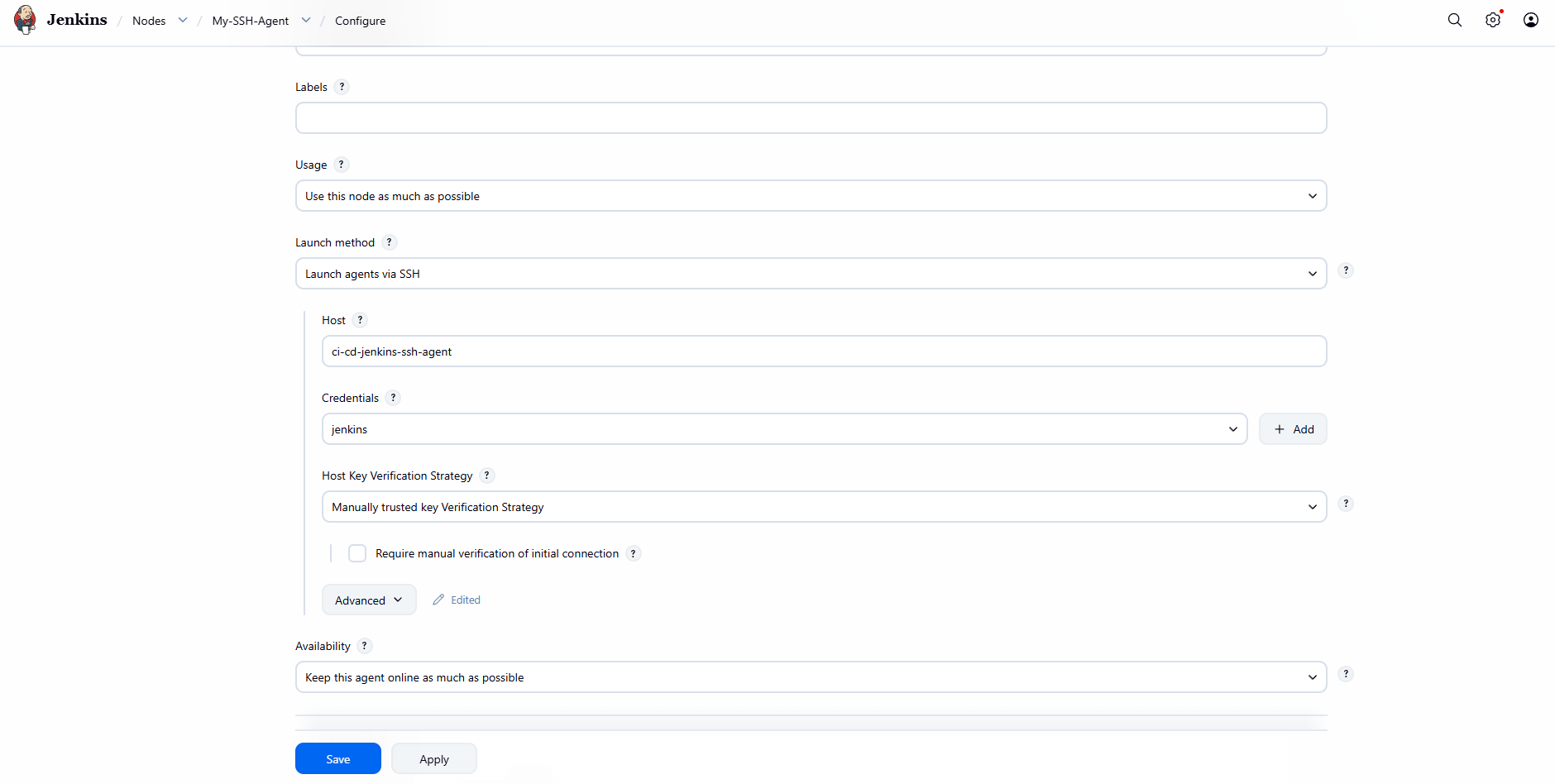
Next, fill-in the required fields, especially :
- “Launch method” which should be Launch agent via SSH
- “Host” should be the name of the agent container ci-cd-jenkins-ssh-agent
- “Remote root directory” which should be /home/jenkins/agent
- Select the credentials created previously (with the username jenkins)
- Select the “Host Key Verification Strategy”, I chose the Manually trusted key Verification Strategy
Now everything is set and ready for our next step!
Launching the agent’s docker container
-
Clone the source code to a working-directory
-
Set environment variables
- Create a copy of .env.exemple named .env.
In it, you can set your own values of course, as long as they are consistent with the rest of the following config.
- In particular, set the SSH_PUBKEY value. It is the public ssh key you’ve generated previously in the controller
## env ##1 PORT_JENKINS_AGENT_SSH=22 2 COMPOSE_PROJECT_NAME=ci-cd-jenkins-ssh-agent 3 DOCKER_GROUP_ID=0 4 SSH_PUBKEY=<your own full public key here> - Create a copy of .env.exemple named .env.
-
launch the agent
- In your terminal, cd to your working-directory then type :
docker compose up
- In your terminal, cd to your working-directory then type :
Testing the agent
- Go to the controller’s dashboard
- Select your agent
- Click on the Launch agent button et voilà ! You’re set
Common Pitfalls & Troubleshooting
Basic
- Incorrect Public Key: A typing error of the public key will prevent any connection. It is crucial to strictly follow the format expected by the agent container.
- Fix: Verify that the key begins with its type (e.g.,
ssh-ed25519) and does not contain any stray line breaks within your.envfile.
- Fix: Verify that the key begins with its type (e.g.,
- Private Key Formatting: When creating Credentials in Jenkins, adding extra spaces or incorrect line breaks will invalidate the key.
- Fix: Copy the entire block, including the
-----BEGIN...and...END-----headers, without manually altering the content.
- Fix: Copy the entire block, including the
- SSH Port Configuration: When setting up the Node on the Jenkins dashboard, the connection will fail if the port does not match the one exposed by the agent container.
- Fix: Ensure the “Port” field in Jenkins exactly matches the
PORT_JENKINS_AGENT_SSHvalue defined in your Docker configuration (default is 22).
- Fix: Ensure the “Port” field in Jenkins exactly matches the
Advanced
- Docker Socket Permissions: This is the most common DoD issue. If the Jenkins user inside the agent container doesn’t have permission to access
/var/run/docker.sock, your builds will fail with a “Permission Denied” error.- Fix: Ensure the
DOCKER_GROUP_IDin your.envmatches the GID of the docker group on your host machine.
- Fix: Ensure the
- Traefik Timeout during Long Builds: If a build step involves a long-running process that communicates via HTTP (like a large image upload/download), Traefik might drop the connection if idle timeouts are too low.
- Fix: Check your Traefik entrypoint configuration for
respondingTimeoutsif you see unexpected 504 Gateway Timeouts.
- Fix: Check your Traefik entrypoint configuration for
- Zombies and Orphan Processes: Since the build containers are “siblings” to the agent, if an agent container is force-stopped or crashes, it might leave “orphan” build containers running on the host.
- Fix: Periodically run
docker pson the host to ensure no rogue build containers are consuming resources after a failed pipeline.
- Fix: Periodically run
- MTU Mismatch (Network issues): If you are running this on a Cloud VPS (like OpenStack or AWS), the default MTU (Maximum Transmission Unit) of 1500 might be too high for nested Docker networks, causing
apt-getornpm installto hang.- Fix: Ensure the Docker network MTU inside your containers matches the host’s MTU (usually 1450 or 1400 in virtualized environments).
Wrapping Up
By routing your Jenkins Controller and Agent through Traefik, you’ve moved beyond a basic lab setup into a professional, reverse-proxied CI/CD environment. The DoD approach ensures your builds remain fast by leveraging the host’s image cache, while the SSH-based Agent configuration keeps your architecture decoupled and secure.
The Architect’s Final Note:
- Scalability: You can now horizontally scale by adding more agents using the same SSH pattern across different hosts.
- Maintenance: Since build containers are “siblings” on your host, remember to run
docker image pruneoccasionally to keep your environment clean.
You now have a robust, containerized automation stack ready to handle complex pipelines. Happy automating!