

Goals
- Configure and run the right containers to tunnel requests into a PHP-FPM server through a Nginx webserver, all through our previously set Traefik reverse proxy
Introduction
The Specificity of PHP-FPM (FastCGI Process Manager)
The key is in the architecture’s approach to PHP.
Traditional Method: In a traditional setup (e.g. Apache with mod_php), the web server and the PHP interpreter are a single, monolithic process. Every time a new web request comes in, a new Apache process is created that contains the entire PHP engine. This is simple to set up, but it’s resource-intensive and doesn’t scale well, especially for large numbers of requests.
PHP-FPM Method: PHP-FPM separates the concerns. The web server (Nginx) is optimized for what it does best (serving files), and PHP-FPM is a separate, dedicated process pool optimized for running PHP. This allows each component to be highly performant and scalable. When the system is under heavy load, you can simply scale the PHP-FPM service without affecting the web server. This approach is much more efficient and resilient for modern web applications.
The Request Flow
A request enters Traefik on port 443 (HTTPS), which decrypts it and sends it to Nginx. Nginx, acting as a proxy, forwards the request to PHP-FPM on a private internal network. PHP-FPM processes the code, sends the output back to Nginx, and Nginx returns the final content back to Traefik, which then encrypts and delivers it to the user. As shown in the following diagram.
 Overview of the Docker - Traefik - Nginx - PHP-FPM Request Flow
Source code
Here you’ll find the source code for a basic PHP demo page showing how the different containers work together to handle requests: https://github.com/a-naitslimane/anaitslimane.article.php-fpm-traefik-docker
Setup
Prerequisites:
- Docker and Docker Compose installed on your machine
- A Dockerized Traefik reverse proxy running locally. If not, please follow through my previous article Traefik reverse proxy
Important!
The following configs are strongly linked to my previous article’s configs. Please remember to adjust with your own values. Especially the external docker network’s name
Local setup
-
Clone the source code to your working-directory
-
Set environment variables
- Create a copy of .env.exemple named .env.
In it, you can set your own values of course, as long as they are consistent with the rest of the following config.\
- Create a copy of .env.exemple named .env.
-
Bind your DOMAIN_NAME to the localhost:
-
Add your local domain name to the
hostsfile:C:\Windows\System32\drivers\etc\hosts(on Windows) and/etc/hosts(on Linux).127.0.0.1 php-fpm.demo.domain
-
-
Launch the services using docker compose:
- In your terminal, first cd to your working-directory then type:
docker compose -f docker-compose.yaml -f up
- In your terminal, first cd to your working-directory then type:
Testing
-
Check that both the nginx and php-fpm containers are running and healthy.
-
In your browser, open the address you’ve configured as DOMAIN_NAME (ex: https://php-fpm.demo.domain )
You should be seeing the following page: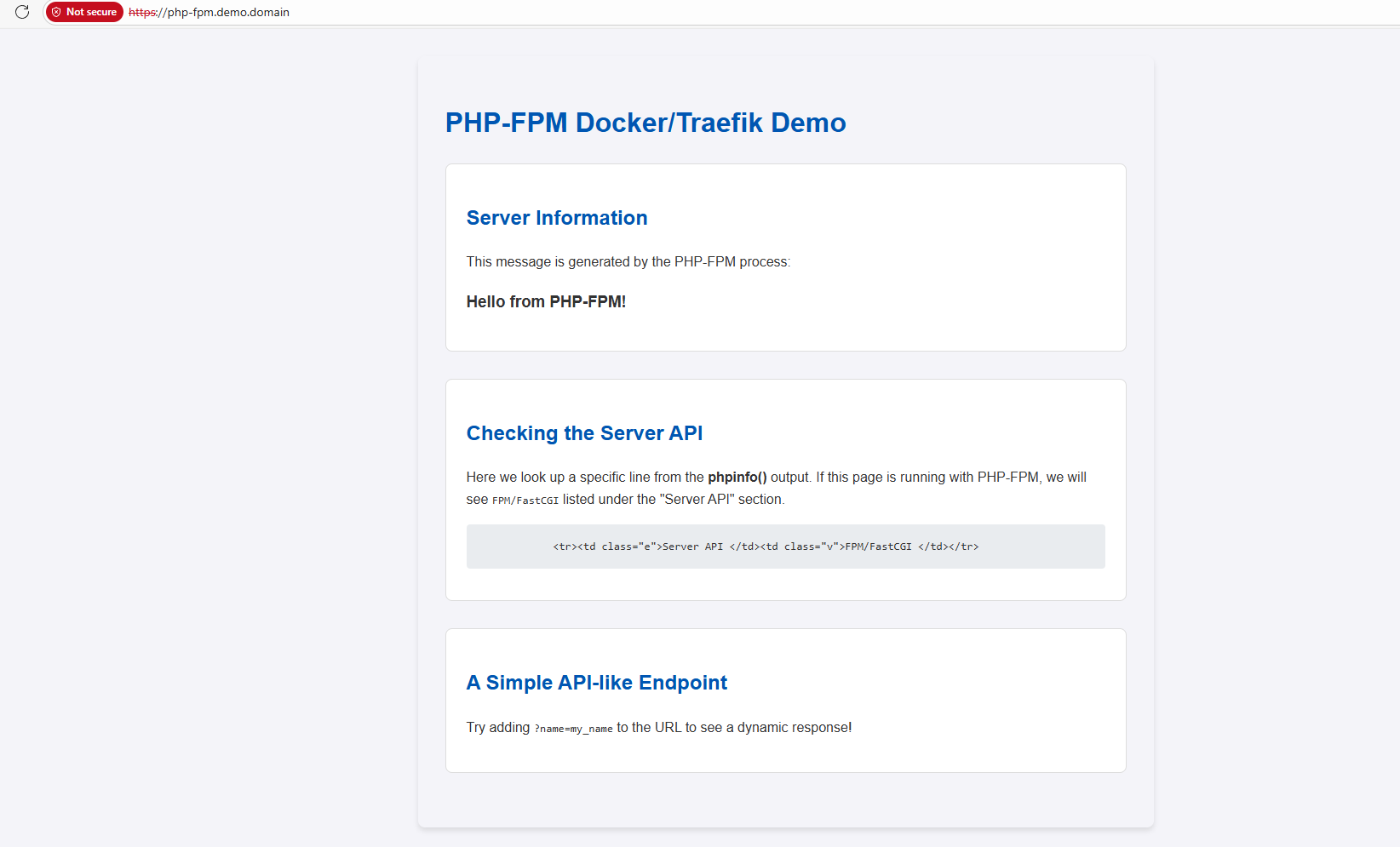
Dissection
-
Here are defined the docker’s networks:
## docker-compose.yaml ##3networks: 4 my-external-network: 5 external: true 6 my-internal-network: 7 external: false -
The my-external-network is the only one exposed to the outside and is used by the nginx container to communicate with Traefik:
## docker-compose.yaml ##9services: 10 nginx: 11 image: nginx:alpine 12 container_name: nginx 13 volumes: 14 # Mount the application source code into the Nginx container. 15 - ./public:/var/www/html 16 # Mount the custom Nginx configuration file. 17 - ./docker/nginx/default.conf:/etc/nginx/conf.d/default.conf:ro 18 networks: 19 - my-external-network 20 - my-internal-network -
The other one (my-internal-network) is found in both nginx and php-fpm containers and is used only for a communication between the two:
## docker-compose.yaml ##31 php-fpm: 32 image: php:8.3-fpm-alpine 33 container_name: php-fpm 34 volumes: 35 # Mount the application source code into the PHP-FPM container. 36 - ./public:/var/www/html 37 networks: 38 - my-internal-network -
In the Nginx configuration, the highlighted line is probably the most important one. It indicates which docker host should receive *.php requests, and on which port
## default.conf ##14 # This location block specifically handles files ending in .php. 15 location ~ \.php$ { 16 # Ensure the file exists to prevent arbitrary code execution. 17 try_files $uri =404; 18 19 # Pass the request to the PHP-FPM service. 20 fastcgi_pass php-fpm:9000; -
Here is a simple test showing that php-fpm is set to processing requests
## index.php ##54 <?php 55 ob_start(); 56 phpinfo(); 57 $php_info = ob_get_clean(); 58 59 $lines = explode("\n", $php_info); 60 foreach ($lines as $line) { 61 if (strpos($line, 'Server API') !== false) { 62 echo htmlspecialchars($line); 63 break; 64 } 65 } 66 ?>
Wrapping up
As we’ve seen, setting up a modern web stack with Docker, Traefik, Nginx, and PHP-FPM is a powerful way to build a robust and scalable application. It represents a fundamental shift away from monolithic, all-in-one web servers to a more efficient, decoupled architecture.
This separation of concerns is the key benefit. It means you can scale each part of your application independently, ensuring your website remains performant and resilient under heavy load.